Theme Gallery
Explore and preview pre-built themes for your dashboard.
Overview
The Theme Gallery is a built-in application page that showcases the available themes in LibreApps Desktop. It allows you to switch between themes instantly to see how they affect the dashboard's look and feel.
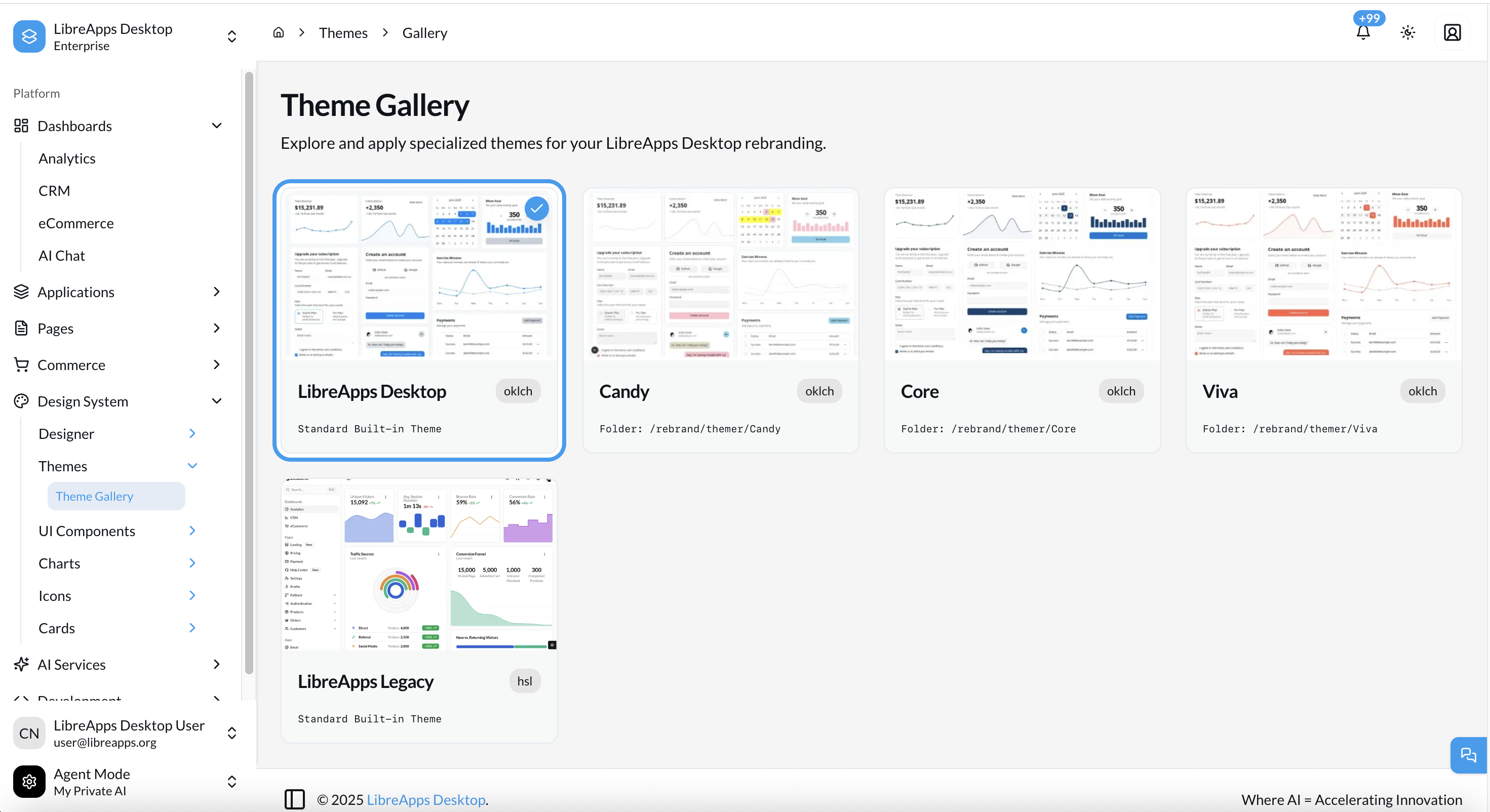
Accessing the Gallery
Navigate to the following URL in your development environment:
http://localhost:3000/en/themes/gallery
Available Themes
- LibreApps (Default): A blue, social-media-inspired OKLCH theme (formerly Tweeter). This is the default theme used when
Theme Nameis set toLibreAppsinrebrand/settings.md. - Candy: A vibrant, energetic OKLCH theme with orange and pink accents.
- Core: A deep purple, enterprise-focused OKLCH theme.
- Viva: A professional, dark purple OKLCH theme.
- Legacy: A clean, professional HSL-based theme.
How to Use
- Browse: Scroll through the gallery to see the different theme cards.
- Preview: Click the "Apply" button on any theme card to switch the entire dashboard to that theme instantly.
- Select: Once you've found a theme you like, note its name and update your
rebrand/settings.mdfile.
Adding to the Gallery
To add your custom theme to the gallery:
- Ensure your theme is in
rebrand/themer/[ThemeName]/. - Add a preview image to
rebrand/assets/gallery/[ThemeName].png. - Update the theme metadata in
src/configs/themes.ts.
Best Practices
- ✅ Do this: Use the Theme Gallery to quickly show different branding options to stakeholders.
- ✅ Do this: Ensure your custom theme preview images are consistent in size and style.
- ❌ Don't do this: Rely solely on the gallery for production branding; always run the rebrand engine for a final build.